Building a file converter that never uploads your files
Most online file converters work the same way: you upload your file to a server, it gets converted somewhere you can’t see, and you download the result. That’s fine for a meme. It’s less fine for a scanned passport, a bank statement, or a folder of family photos.
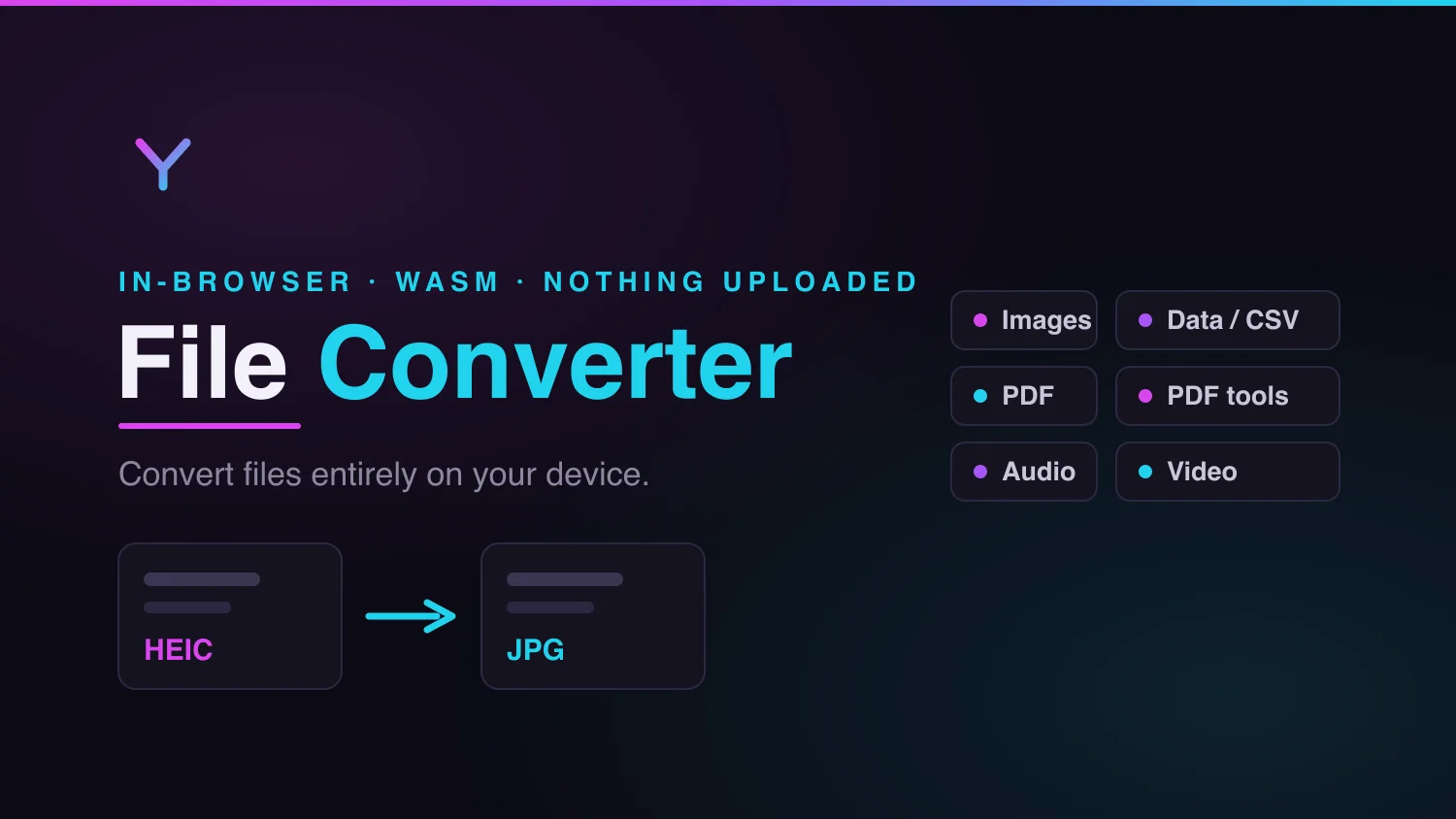
So I built one that never uploads anything. It lives at yongchivo.com/convert, and every conversion runs entirely in your browser using WebAssembly. The file you pick never leaves your device — there’s no upload, no server-side processing, and nothing to log. That’s the whole point, and it’s the main thing that makes it different from the dozens of upload-based converters out there.
What it does
It’s grown into six categories, all live:
- Images — PNG, JPG, WebP in every sensible direction, plus HEIC.
- Data — CSV, JSON, YAML and XML converted between each other.
- PDF — images to PDF and PDF to images.
- PDF tools — merge, split, rotate and compress.
- Audio — MP3, WAV, M4A, FLAC, OGG, and audio extraction from video.
- Video — MOV to MP4, MP4 to WebM and back, MP4 to GIF.
Each conversion has its own page (/convert/png-to-jpg,
/convert/heic-to-jpg, and so on), which also helps each one rank for the
specific thing people actually search for.
The privacy angle isn’t marketing — it’s the architecture
The reason “nothing is uploaded” is true is that there’s no server to upload to. The conversion code is WebAssembly that ships to your browser and runs there. When you drop in a file, it’s read into memory, converted, and handed back as a download — all on your machine.
This has a nice side effect beyond privacy: it costs almost nothing to run. There’s no conversion server burning CPU per request. It’s the same stack as the rest of the Yongchivo ecosystem — Astro on Cloudflare — where the “backend” is really just static files and the occasional edge Worker. The heavy lifting happens on the visitor’s device, not mine.
Building every pair in both directions
For most formats, if you can go one way it’s silly not to offer the other. So PNG↔JPG, PNG↔WebP, JPG↔WebP, CSV↔JSON, JSON↔YAML, MP4↔WebM — all bidirectional. If a conversion is technically sensible in both directions, it exists in both directions.
The one deliberate exception is HEIC, and it’s a good example of letting reality dictate the design instead of forcing symmetry. HEIC is Apple’s photo format, and browsers can’t natively read it. I can decode it (turn a HEIC into a JPG or PNG), but there’s no good reason to encode to it — nobody’s asking to turn a JPG into a HEIC, and doing it well in the browser is a mess. So HEIC is decode-only: HEIC goes in, JPG or PNG comes out, and that’s it. One-way on purpose.
Choosing libheif over the obvious option
HEIC decoding is where I made the decision I’m most glad about. The popular
library for this is heic2any, and it would have been the quick path. I
went with libheif-js instead, and the reason was security.
This site runs a strict Content-Security-Policy — it’s part of why it
scores an A on securityheaders.com. heic2any is compiled to asm.js and
needs 'unsafe-eval' in the CSP to run, which would meaningfully weaken
that policy for every page on the site. libheif-js is real WebAssembly:
it only needs 'wasm-unsafe-eval', a far narrower permission, and it
inlines its own WASM so decoding stays completely offline — no fetch,
nothing over the network.
It was more work to wire up, and the decoder is a chunky ~1.4 MB. But that weight only loads on the HEIC pages, not the whole site, and I’d rather pay that than punch a hole in the CSP. That trade — a bigger download on two pages versus a weaker security policy on all of them — felt obvious once I framed it that way.
When the pattern doesn’t fit, don’t force it
Under the hood, most conversions follow a simple model: format X in, format Y out, one file at a time. A registry maps every X→Y pair to its slug, the file types it accepts, and the SEO copy for its page. Adding a new image or data conversion is basically a new entry in that table.
PDF broke that model, and I let it. “Merge these five PDFs into one” isn’t an X→Y conversion — there’s no single source format, no single output, and it takes many files and produces one. Trying to cram merge, split, rotate and compress into the same “from → to” shape as PNG→JPG would have meant lying about what those tools do.
So PDF tools are a separate operation kind: an entry doesn’t need a “from” and a “to”, it names an operation (merge, split, rotate, compress) and gets a different UI — a reorderable list of files instead of a single picker. The image-to-PDF and PDF-to-image conversions still use the normal model, because those genuinely are X→Y. The lesson I keep relearning: when a clean abstraction stops describing reality, the answer is usually a second abstraction, not a more tortured version of the first.
Bilingual by default
The whole thing is bilingual. English routes live at the root
(/convert/...) and Spanish mirrors sit under /es/convert/..., with the
right hreflang and canonical tags so search engines understand they’re the
same page in two languages. It’s the same bilingual approach I’ve been
using across the Yongchivo projects.
What I took away from it
This started as “I just want to convert a HEIC without uploading it somewhere” and turned into the most architecturally interesting thing I’ve built. The parts I’ll remember aren’t the conversions themselves — it’s the decisions around them: picking a harder library to protect a security policy, and knowing when to stop forcing a pattern that had stopped fitting.
Building on the browser’s own capabilities, with WebAssembly doing the work the server used to do, turns out to be a genuinely good way to ship something private, fast, and cheap to run. More of the web could work this way than people assume.
Part of “learning in public” — documenting projects, mistakes, and things I figure out while studying Cyber Security and building software alongside it.
Comments
Sign in with GitHub to leave a comment or react. Be kind, be useful.